How to take a LinkedIn headshot with an iPhone
Face a window with soft light, place your iPhone at eye level, and include your head and shoulders. Keep some space around your hair and chin so you can adjust the circular crop later. A quiet wall or an uncluttered room is a useful starting point.
- Support the phone. A tripod or stable surface makes it easier to keep the framing consistent. Use the timer or ask a friend to take the photo.
- Check your expression and focus. Look toward the lens, relax your shoulders, and take several frames. Enlarge a photo to check that your eyes are sharp.
- Keep a useful original. Save the full photo before making a profile crop. Choose a recent image where your face is easy to recognize.
For the camera setup, lighting fixes, and source-photo checklist, follow our complete iPhone headshot guide.
AI LinkedIn headshot generator or a phone photo?
A well-lit phone photo may already do the job. An AI portrait is an option when you want to explore a different business setting, outfit, or studio style. In either case, choose a recognizable, current representation of yourself.
| Your starting point | A useful next step |
|---|---|
| A sharp photo with a calm background | Try a simple crop first. You may not need a different portrait. |
| A clear face, but a distracting outfit or setting | Explore a restrained business template and compare the result with your original. |
| A blurry face, deep shadow, or strong beauty filter | Retake the source photo in better light before generating or cropping. |
| An AI result that changes your face | Choose a different result or clearer source photo; keep the version that reflects your likeness. |
LinkedIn headshot backgrounds and what to wear
Choose a look you would feel comfortable wearing to a professional introduction. These are starting points rather than rules for an entire industry.
| The impression you want | Background and clothing to consider | What to review |
|---|---|---|
| Traditional and formal | A plain studio setting, jacket, and simple shirt. | Collar edges, natural shoulders, and separation from the background. |
| Approachable and modern | A quiet office or neutral wall with a plain shirt, knit, or relaxed jacket. | Even light and a setting that keeps attention on your face. |
| Creative and personal | A simple setting with a little color and clothing that fits your day-to-day work. | Whether the image still looks clear at a small profile size. |

In Headshot, compare templates such as Soft Corporate and Traditional Studio before choosing a look. The published screenshots below show the style picker and an example result.
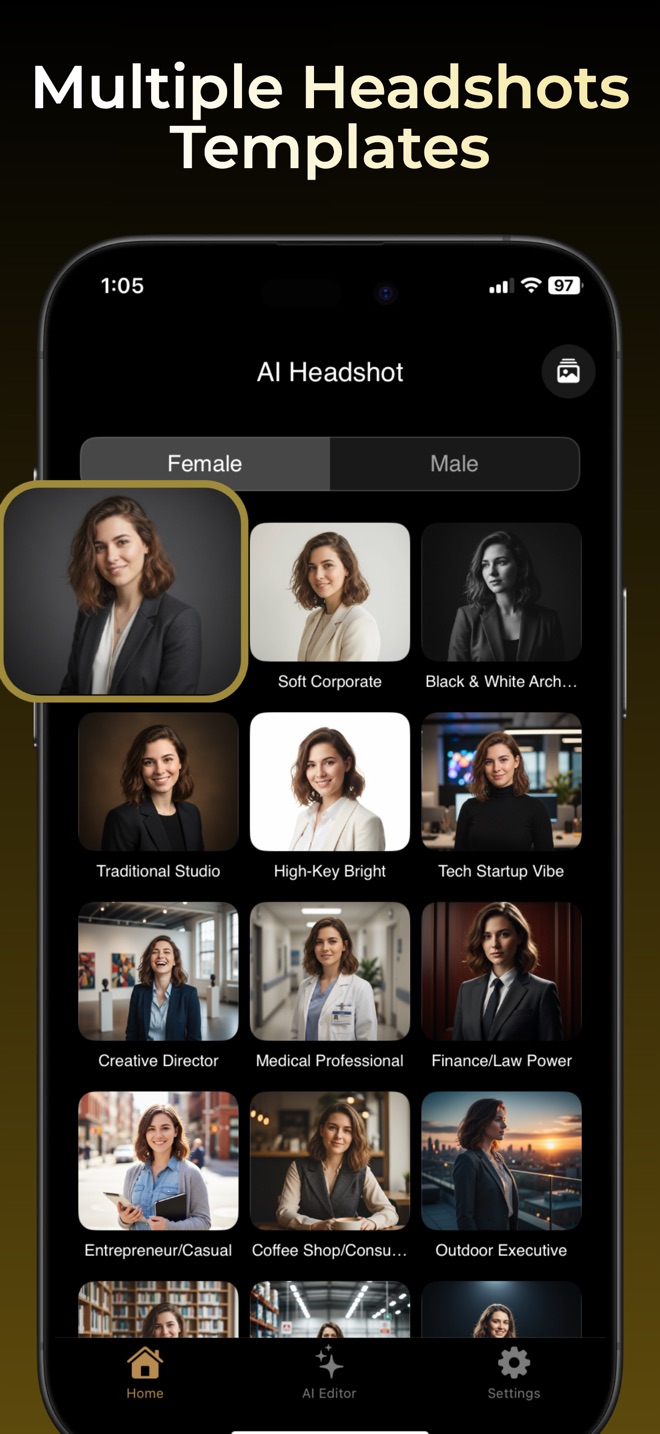
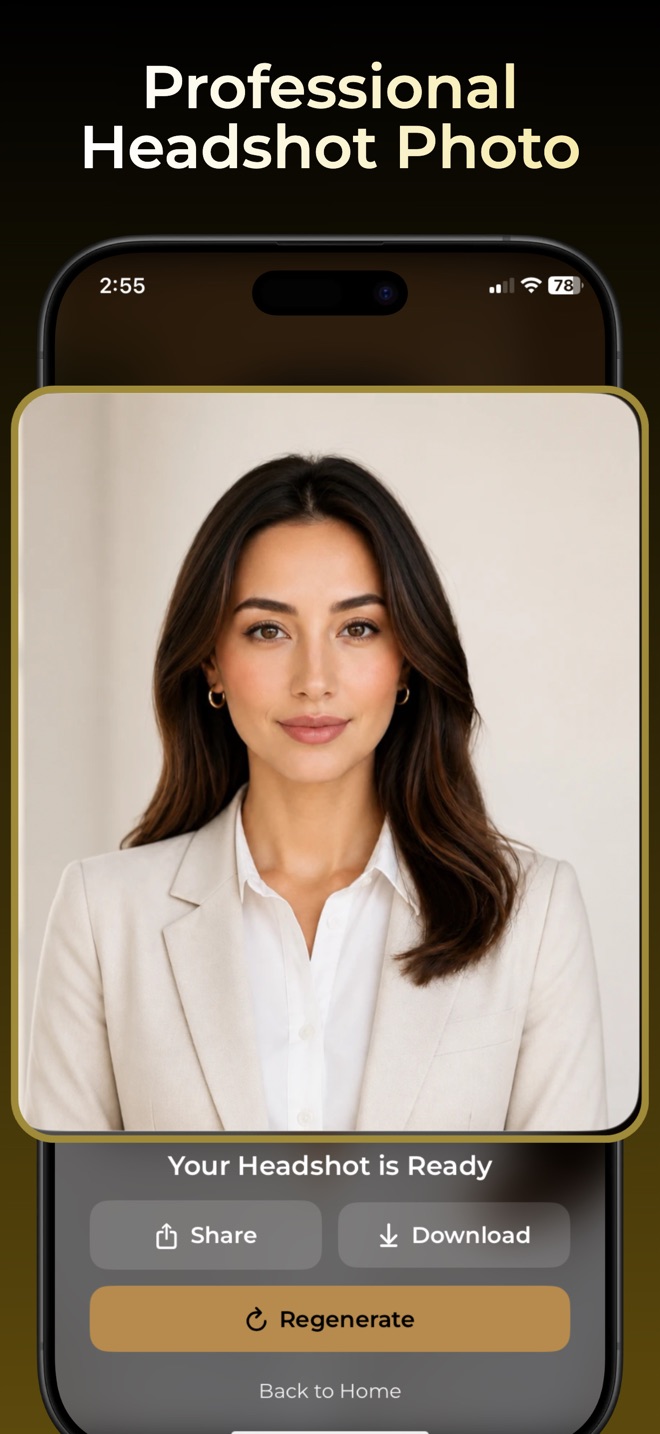
Screenshots from our published App Store listing show example results. Your results will vary.
LinkedIn profile photo crop: preview a circular frame
Check that your whole face is visible and remains easy to recognize at a small size. Leave room around your hair and chin. This example uses the same Headshot portrait in both previews.

Move the slider to compare a wider frame with a closer crop. When you upload your own portrait to LinkedIn, check its final position in the profile photo editor.
What makes a strong LinkedIn headshot?
A useful professional headshot looks like you today, keeps your face easy to see, and fits the kind of work you do. You don’t need a dramatic pose or a complicated setup. Aim for a natural expression, even light, and a background that doesn’t compete with you.
- Choose a recent photo. People should recognize you when you meet.
- Keep your face in focus. Crop from around the shoulders up, with a little space above your head.
- Use soft, even lighting. Face a window or another gentle light source.
- Dress for your field. Choose something you would feel comfortable wearing to a professional introduction.
- Keep the setting simple. A clean background lets the viewer focus on you.
How to turn a selfie into a professional LinkedIn photo
Yes. Start with clear selfies taken in good light, ideally with more than one angle and a neutral background. Headshot is an iPhone and iPad app that can create professional portraits from your photos. Explore a style, outfit, or background that fits your work, then choose a result that still looks recognizably like you.
Before uploading, check LinkedIn’s current image guidance and review your crop on both desktop and mobile. A profile picture should remain clear when displayed small.
Use an AI LinkedIn headshot generator on iPhone
If you are looking for a LinkedIn profile picture maker, Headshot is an independent portrait app for iPhone and iPad. It creates AI portrait styles from your photos. Start with a clear selfie, choose a business template, and review the result before using it as your LinkedIn profile picture.
- Take a clear source photo. Face a window, keep the camera at eye level, and include your head and shoulders. Our iPhone headshot guide explains lighting and camera setup.
- Choose a business style. Open Headshot and browse the available templates. Soft Corporate and Traditional Studio are useful starting points for a simple business portrait; a more casual style can suit a creative profile.
- Select your photos and generate. Follow the upload instructions shown in the app. Pick photos where your face is clear and recognizable, with no heavy beauty filter. Some generation features require a purchase.
- Review your likeness. Compare your eyes, face shape, hair, glasses, and expression against your source photo. Save a result only when it represents you accurately.
- Upload and check the crop. Add the saved portrait to LinkedIn and preview how it looks inside the profile photo circle. Leave enough room that your chin and the top of your head stay visible.
LinkedIn profile picture size and file requirements
LinkedIn’s current upload guidance accepts JPG or PNG files up to 8 MB and lists a minimum profile photo size of 400 × 400 pixels. Use a sharp image with room to crop; enlarging a tiny or blurry image will not add detail. Check LinkedIn’s photo specifications if an upload fails.
Can you use an AI headshot on LinkedIn?
LinkedIn’s profile photo guidelines require a picture that reflects your likeness. An AI-generated style still needs to look like you. Avoid a result that changes your identity or looks like a different person.
Fix the most common headshot problems
- A dark face: turn toward a light source instead of standing with a bright window behind you.
- An unnatural face: use a clearer source photo and try a more understated style.
- A busy crop: choose a head-and-shoulders portrait with a calm background.
- A tiny face on mobile: crop closer and check the photo at the size it appears beside comments.
Professional LinkedIn headshots for job seekers
Choose a recent profile photo that fits the kind of work you are applying for. If you use LinkedIn alongside a portfolio or speaker bio, consider using the same recognizable portrait across those introductions. Check how it looks beside your name on a phone as well as at full profile size.
A LinkedIn headshot and a résumé photo serve different purposes. Adding a portrait to your profile does not mean you should put a picture on every job application. Follow the employer’s instructions and the conventions of the country where you are applying.
LinkedIn profile picture questions
How do I choose my best LinkedIn profile picture?
Compare a few recent portraits and choose the one with a clear face, an approachable expression, and a quiet background. Preview it small, check the circular crop, and ask whether someone meeting you would recognize you. A natural phone photo can work well if those basics are in place.
Can I make a LinkedIn headshot for free?
You can take your own profile photo with your iPhone using window light and the camera timer. Headshot is free to download, but some AI generation and editing features require an in-app purchase or subscription. Read the offer in the app before choosing a paid feature.
What background is good for a LinkedIn headshot?
A plain wall, simple studio backdrop, or softly blurred workspace can keep attention on your face. Avoid objects behind your head and backgrounds that make your hair or clothing hard to see. The strongest choice is one that suits your work and stays clear in a small crop.
Why does my LinkedIn profile picture look blurry?
Start with an original, sharply focused photo instead of a screenshot or a small image enlarged later. Check that the saved file meets LinkedIn’s size requirements, leave room for the crop, and preview the upload. If the source photo itself is blurry, retake it with a steadier phone and better light.
Updating your job-search materials too? Read our guide to when a résumé photo belongs in an application.
Make a profile photo for your next move
Whether you’re refreshing your profile, starting a job search, or introducing yourself to a new network, a polished photo is one small way to make your page feel ready.
Try a professional headshot on your iPhone or iPad.
Free to download; some features require in-app purchases.